



One of the hardest parts of running events isn't the ticketing. It's the handovers.
Who needs access? To which event? Which reports? Can access entry and in person sales reports?
And how do you do all that without sharing passwords?
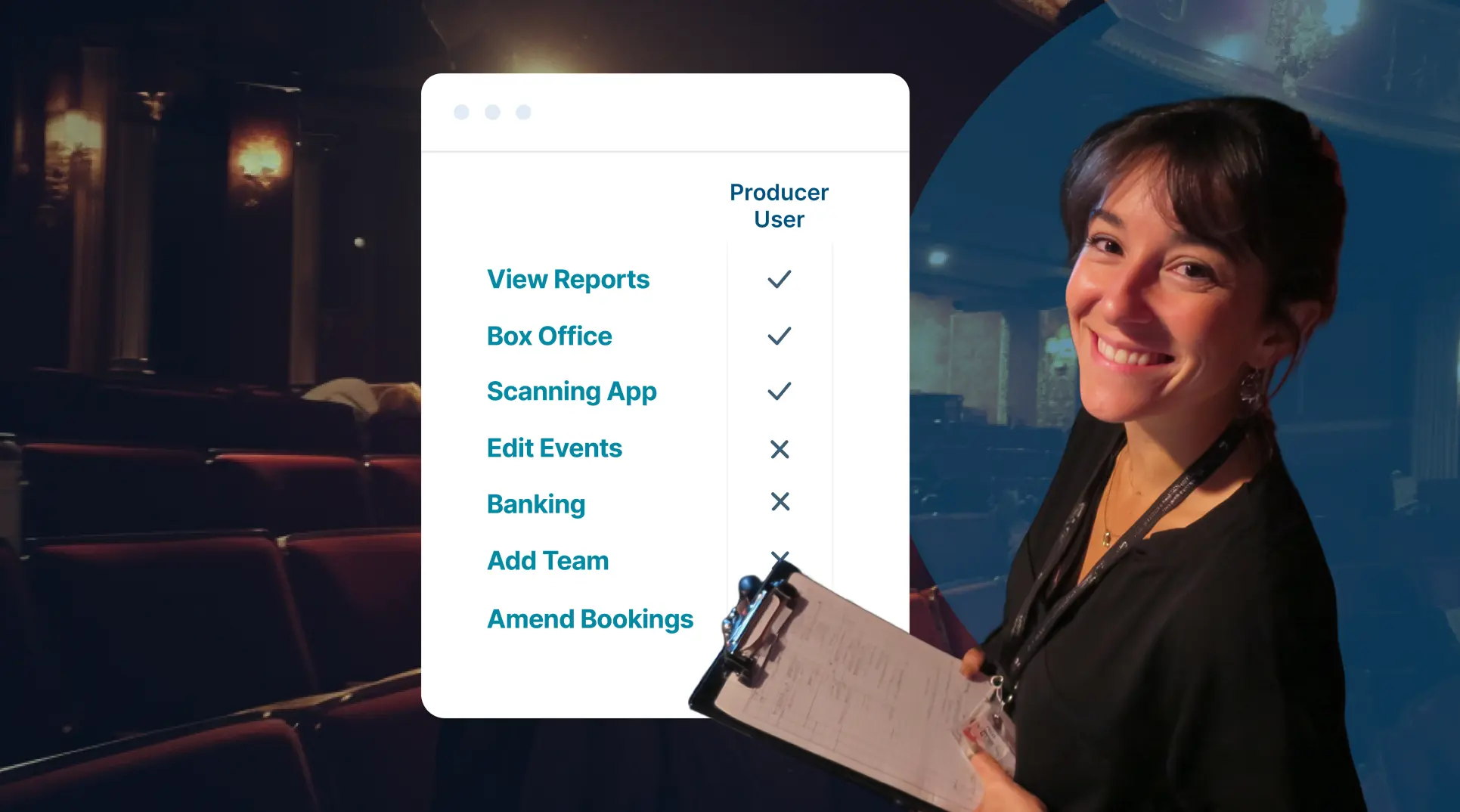
That's exactly what the Producer Team Member role is for: limited access for the people helping deliver your event. Provide access to reports for multiple events, to scan tickets and make sales on box office without giving them power to of event editing or account-wide settings.
The quick version
How the Producer user makes your life easier:
- Invite a Producer once
- Choose their access and privileges including which events or reports they can see, and whether they can scan tickets, sell tickets or view hidden tickets.
You can invite as many Producers as you like and set their access levels individually. No more setting up access per event every time – and you can give them access to future events so they never bug you again!
Producers log in with their own TryBooking username and password, and their access is controlled by you in Team Members on the Account Dashboard.
What's changed (and why you'll care)
Previously, Producer Access lived at the event level with a Producer ID and password.
That approach worked, but became cumbersome for event organisers who run multiple events, rotate staff, or work with multiple external partners.
Now, Producer Access has moved to Team Members in your TryBooking portal.
Event-level Producer IDs are being phased out, with a short transition period where existing IDs still work.
Translation: You get a cleaner, easier, safer way to manage limited access requirements.
What the experience feels like (Owner vs Producer)
For Account Owners and Power Users: "Set it once, keep it tidy"
When you invite a Producer, you choose:
- Events: Allow specific event access – or all of them – plus you can allow access to future events
- Reports: Select the reports they're allowed to view
- Additional access: Enable ticket scanning, ticket sales via Box Office, and/or hidden ticket access
For Producers: "No clutter, just what I need"
Once active, Producers get a simplified dashboard with:
- Reports
- Make a Booking
- User settings
- Box Office (if enabled)
Their landing page is always Reports, and they only see the events and reports you've assigned.
Why this might be useful for me
If any of these sound like you, Producer users will make your life calmer:
"I need my event helpers to see some information, but not everything."
Producer User is perfect for this situation, giving you granular control over individual access.
"I'm working with external partners (venues, promoters, volunteers) and I want clean boundaries."
Great! You can control exactly what Producer Users can see and do in your account – and what they can't.
"Front-of-house needs Box Office and scanning, but I don't want them changing event setup."
Peace of mind is here. Provide Producer Users with scanning and sales, without the risk they might change how your events run.
Producer users are built for practical access – the kind that helps events run smoothly while keeping your account in safe hands.
Real-world stories (so you can picture your setup)
1. School event organisers
"Friday night fundraiser, 14 volunteers, zero spare brain space."
You've got parents helping on the door, someone checking table allocations, and a staff member keeping an eye on attendance and dietary notes.
Instead of forwarding spreadsheets around or giving away too much access, you invite them as Producers, and:
- Limit them to the one event
- Grant just the reports they need
- Keep everything else out of reach
- Allow them to take sales at the door
2. Festival event organisers
"Lots of events, lots of stakeholders, one clean source of truth."
Film festivals and comedy festivals have a special talent for complexity: venues, comedians, promoters, sponsors, and volunteers, each needing just enough visibility.
With Producer users, you can:
- Give a venue manager access to only events hosted at their venue
- Let a promoter track sales via reports
- Avoid access to sensitive account information
- Allow venue staff to sell tickets and scan people in
3. Music event organisers
"Promoters get visibility. Venues keep the controls."
A touring promoter (or band manager) doesn't need to build your event or manage your staff – they just want to keep an eye on sales, check capacity, and stay across what's happening on the night.
Invite the promoter as a Producer, and:
- Assign access to only the gigs they're promoting – one show, a run of shows, or future events if it suits
- Choose the reports they can view, so they can track performance without seeing everything
- Enable Box Office access if you want them to handle a ticket allocation or on-the-night sales
- Enable Scanning App access if they're running their own door team
4. Theatre venues
"Your venue stays in charge. Your producer gets what they need."
Theatre is full of moving parts: season planning, allocations, comps, door lists, last-minute swaps and a whole lot of people who help deliver the show but don't need the keys to the account.
With Producer users, a venue or theatre company can keep full control of event setup and account settings, while giving a producer or touring company the practical access that makes the night run smoothly.
Invite them as a Producer, and:
- Assign access to only the productions they're responsible for
- Choose the reports they can view, so they can track sales and attendance without accessing everything
- Enable Box Office if you want them to make bookings for special guests, ticket holds, or door sales
- Enable Scanning App if they're managing their own guest list or door team
5. Council venues
"Provide event organisers only the account access they need."
Council and venue teams often host events run by community event organisers.
These organisers need enough access to do their job, but you need to protect the rest of your venue's account and your community's data.
Invite the organiser as a Producer, and:
- Let them access only their event(s), so they can't see other bookings in your calendar
- Provide access to the reports they need for their stakeholders (sales, attendance, check-ins)
- Enable Box Office if they need to process bookings for VIPs, guest lists, or on-the-night sales
- Enable Scanning App if they're running the door – without giving access to account-wide settings
6. Community groups
"Committee visibility without committee chaos"
Rotary, associations, school committees... everyone's involved, and everyone means well. You just don't want ten people with account access and messing with your events.
Invite them as a Producer, grant a few key reports, and keep account management simple.
Ready when you are
If you've ever thought "I wish I could give them access without giving them access", this is your moment.
Log in or sign up today and head to Dashboard → Team Members to invite your first Producer.
Best part? It's all free.
For more information on Producer user and team members, check out our Learning Centre.